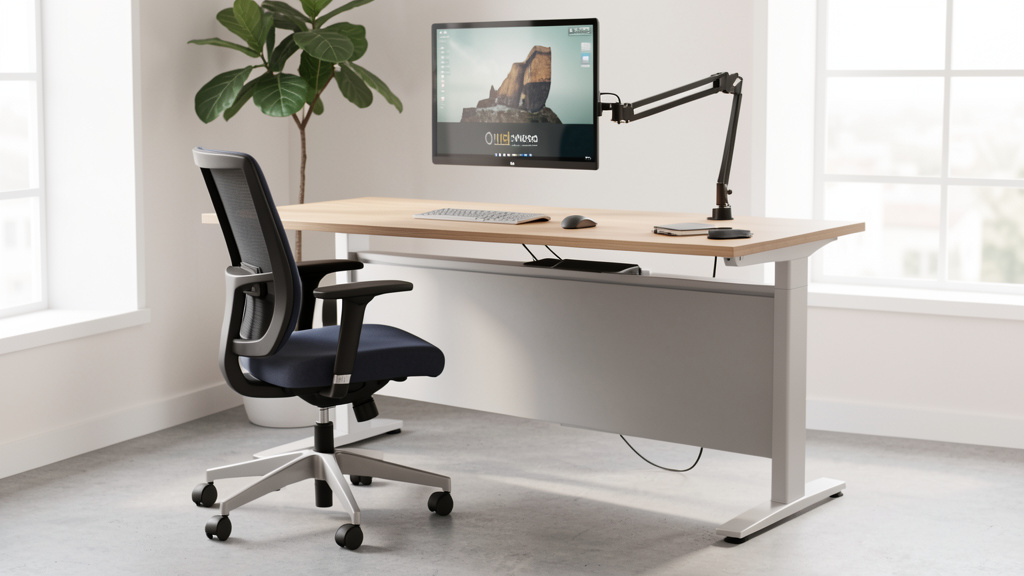
Move Beyond Guesswork: A Thoughtful, Step-by-Step Approach to Reducing Discomfort and Supporting Focus—Using Principles That Adapt to Your Body, Space, and Daily Rhythms
Transform your home workspace from a source of recurring tension into a thoughtfully calibrated environment that supports your well-being throughout the workday. This guide offers a comprehensive, adaptable framework grounded in established ergonomic principles, designed to help you identify and address misalignments unique to your anatomy, furniture, and workflow. Rather than prescribing a single “perfect” setup, we focus on cultivating awareness, introducing gentle movement, and making incremental adjustments that compound into lasting comfort. You’ll learn how to work with your body’s natural rhythms—not against them—using solutions scalable across budgets, spaces, and physical needs.
Introduction
For many navigating remote or hybrid work, the home office occupies a complex space: a hub of productivity, creativity, and connection, yet also a potential source of persistent physical strain. That familiar tightness between the shoulder blades, the morning stiffness in the lower back, or the occasional tingling in the hands after extended screen time—these sensations are not inevitable costs of working from home. They often signal subtle mismatches between your body’s needs and your workspace configuration. Research from organizations such as the Human Factors and Ergonomics Society and the National Institute for Occupational Safety and Health (NIOSH) consistently highlights how environmental design influences musculoskeletal comfort, cognitive engagement, and overall well-being. Yet much available guidance remains fragmented: isolated tips like “raise your monitor” or “sit up straight” lack context, sequence, or personalization, leaving users uncertain where to begin. This guide bridges that gap. Synthesizing biomechanical principles, occupational health insights, and real-world adaptability, we present a cohesive, evolving system. Whether you’re temporarily working at a kitchen table or refining a dedicated study, this framework meets you where you are. It begins not with a purchase, but with observation—learning to read your body’s signals and respond with intention. Your path toward greater comfort unfolds through understanding, not perfection.
The 5-Pillar Adaptive Framework
Ergonomics is not about locking yourself into a single “ideal” posture. Human physiology thrives on subtle movement and variation. True ergonomic success lies in cultivating a dynamic equilibrium—a workspace that supports natural motion while minimizing sustained strain during focused tasks. The 5-Pillar Framework moves beyond isolated tweaks to build a responsive, resilient system. Each pillar reinforces the others, creating compounding benefits. Begin with Pillar 1 and progress sequentially; foundational alignment supports all subsequent adjustments. Treat this as an evolving practice. Revisit pillars periodically as your awareness deepens, your tasks shift, or your body’s needs change with seasons, energy levels, or life stages.
Pillar 1: The Foundation – Chair and Postural Awareness
Your seating forms the base of your workspace ecosystem. Without stable, adaptable support, other adjustments may feel unstable or ineffective. “Supportive” is deeply personal—it varies with height, proportions, existing comfort patterns, and even daily energy fluctuations. Instead of seeking a universal solution, focus on universal principles of seated alignment that you can adapt to your context.
Why This Pillar Matters
When seated, spinal loading patterns shift compared to standing. Thoughtful chair configuration helps distribute weight through the skeletal structure rather than over-relying on smaller stabilizing muscles, which may fatigue more quickly. Proper alignment supports circulation, reduces unnecessary muscular effort, and creates physical conditions more conducive to sustained focus. Research suggests that chairs offering personalized lumbar support and adjustability may contribute to greater comfort for many users over time.
Step-by-Step Chair Calibration Guide
Perform adjustments barefoot on a firm surface for accuracy. Use a mirror or ask for gentle feedback if helpful.
-
Seat Height: Finding Your Stable Base
Sit fully back. Adjust height until feet rest flat (or on a footrest), thighs run roughly parallel to the floor (or slope very slightly downward), and knees form a relaxed angle near 90–110°. Key insight: If feet dangle, circulation may be restricted, and pelvic alignment can shift. If the seat is too low, hips may tuck under, reducing the spine’s natural curve. Simple check: Slide your palm horizontally under your thigh at the seat edge. You should feel light contact but be able to move your hand freely. If tight, lower the seat; if excessive space, raise it. For individuals with shorter inseams, a footrest often becomes essential for stability—not optional. A sturdy box, inverted plastic bin, or stack of books wrapped in fabric offers an immediate, adaptable solution. -
Seat Depth: Respecting Knee Space
Slide back until your spine contacts the backrest. Aim for a gap of about two finger-widths (roughly 1.5–2 inches) between the back of your knee and the seat edge. Why it matters: Too deep, and the seat edge may press into the soft tissue behind the knee, potentially affecting comfort and circulation. Too shallow, and weight concentrates on the sit bones, which may become uncomfortable over time. Adaptation: If your chair lacks depth adjustment, place a folded towel or thin cushion vertically against the backrest to effectively shorten the usable seat depth. Avoid sliding so far forward that lumbar support is lost. -
Lumbar Support: Honoring Your Spine’s Natural Curve
The lower spine maintains a gentle inward curve (lordosis). Support should gently meet this curve without forcing an exaggerated arch. Try this: Stand with your back against a wall. Notice the small space between your lower back and the wall—that reflects your natural contour. Your chair’s lumbar support (or a rolled towel) should approximate this depth. Position the support’s center near your belt line (typically 7–10 inches above the seat). If using a towel, roll it firmly, secure with a rubber band, and wedge horizontally into the curve of your lower back. Gentle reminder: Support should feel like a subtle guide, not a rigid brace. If you feel pressure on ribs or hips, adjust downward. -
Armrests: Purposeful Use
Armrests serve best during resting pauses between typing or when transitioning to stand—not as constant weight-bearing surfaces while actively working. Calibration: Adjust height so elbows rest lightly at 90–110° with shoulders fully relaxed (no shrugging). While typing, arms should float slightly above the rests. If armrests elevate your shoulders, lower or temporarily remove them. If too low, causing slumping, raise them or add a thin, firm pad. For chairs without armrests, ensure desk height allows relaxed shoulders (addressed in Pillar 3).
Common Calibration Considerations
– Consideration: Setting lumbar support to maximum intensity.
Potential effect: Over-arching may create new points of tension.
Gentle adjustment: Reduce until support feels neutral and supportive.
– Consideration: Perching on the seat’s front edge to “sit upright.”
Potential effect: Loss of thigh support, increased pressure on the tailbone.
Gentle adjustment: Sit fully back; let lumbar support encourage alignment.
– Consideration: Overlooking seat tilt.
Potential effect: A backward tilt may encourage slouching; forward tilt may strain knees for some.
Gentle adjustment: Start with the seat pan level. If your chair has a waterfall front edge, a very slight forward tilt (2–5°) may support circulation for certain users—experiment mindfully.
The Guiding Insight: A well-calibrated chair doesn’t rigidly hold you upright—it creates conditions where your body can maintain comfortable alignment with minimal effort. Support should feel integrated, not intrusive.
Adapting Non-Adjustable Seating
Many dining chairs, stools, or inherited furniture lack adjustments. Strategic, low-cost modifications can significantly improve function:
– Hard wooden chairs: Add a folded blanket or yoga mat for cushioning. Introduce rolled-towel lumbar support. Use a stable footrest to achieve proper knee angle.
– Bar stools (common with standing setups): Ensure seat height allows feet flat on a footrest and elbows near desk height. Add a contoured cushion. Limit continuous seated intervals; pair with standing or movement breaks.
– The “Kitchen Chair Adaptation”: Place a tennis ball inside a sock, tie securely, and wedge horizontally into the small of your back against the chair. The ball’s shape gently mimics lumbar contour. Pair with seat cushioning and mindful posture checks.
Pillar 2: The Horizon – Monitor Placement and Visual Comfort
Your visual field guides your posture. Straining to see a screen prompts subtle—but cumulative—adjustments throughout the neck and shoulders. Monitor placement centers less on screen size and more on optical alignment, lighting harmony, and reducing visual fatigue. This pillar addresses physical positioning alongside environmental factors like glare, ambient light, and screen settings.
Why Visual Alignment Influences Posture
The head balances atop the cervical spine. When the gaze drops significantly downward (common with laptops), neck muscles engage more intensely to support the head’s weight. Over time, this sustained effort may contribute to tension in the neck, shoulders, and upper back. Positioning the screen to align with a naturally relaxed gaze helps maintain the spine’s neutral alignment.
Finding Your Personal Screen Zone
1. Height as Priority: The top portion of your primary screen should sit at or slightly below eye level when seated with a relaxed, upright posture (ears roughly aligned over shoulders). Refined perspective: A comfortable downward gaze angle for reading is typically 10°–20° below straight ahead. Therefore, the center of your screen often rests within this gentle downward field. Practical check: Close your eyes, settle into your chair with relaxed posture, then open them. Your gaze should land comfortably in the upper third of the screen—not straining upward or downward.
2. Distance for Ease: Sit approximately an arm’s length away (20–30 inches). Too close may cause eye fatigue from constant refocusing; too far may trigger forward leaning. Rule of thumb: Hold your fist toward the screen center. Your thumb should cover roughly 1–2 lines of typical text.
3. Angle and Tilt: Tilt the screen gently backward (10°–20°) to minimize reflections and align perpendicularly with your line of sight. For multiple monitors:
– Primary screen: Centered directly ahead.
– Secondary screen: Positioned adjacent, angled slightly inward. The seam should remain within comfortable peripheral vision; avoid frequent neck twisting. If monitors differ in size, aligning top edges often creates visual continuity.
– Laptop users: Elevating the screen is essential for neck comfort. Close the lid and use an external monitor, or raise the laptop screen to proper height and connect an external keyboard/mouse. Stable books, a dedicated stand, or an overturned plastic bin provide immediate elevation.
Reducing Visual Fatigue: Beyond Positioning
Physical placement is one layer. Environmental factors significantly influence comfort:
– Lighting Harmony: Position your desk perpendicular to windows when possible (not facing them directly or with your back to them). Use adjustable blinds or sheer curtains to diffuse direct sunlight. Replace harsh overhead lighting with warmer, adjustable task lighting (2700K–3500K). Consider a bias light—a soft, dim lamp placed behind the monitor shining on the wall. This reduces contrast between screen and surroundings, easing visual transition. Some users report reduced eye strain with this approach.
– The 20-20-20 Practice: Every 20 minutes, glance at something approximately 20 feet away for 20 seconds. This offers a gentle reset for focusing muscles. Pair it with a micro-movement: shoulder rolls, a slow neck glide.
– Screen Settings: Enable night mode or warmer color temperatures in the evening. Adjust text size to avoid squinting. Match screen brightness to ambient light (not brighter). Clean screens regularly—smudges increase visual effort.
– Glare Management: If reflections persist despite positioning, a matte anti-glare screen protector may help. Avoid glossy filters that can amplify reflections.
Seasonal and Contextual Notes
– Winter/darker months: Shorter daylight hours may increase reliance on artificial light. Ensure task lighting is adequate but not glaring. Warmer color temperatures in the evening support circadian rhythm.
– Summer/bright days: Adjust blinds proactively as the sun moves. Bias lighting becomes especially helpful when room lighting fluctuates.
– Evening work sessions: Prioritize warmer screen tones and softer ambient lighting to minimize blue light exposure before bedtime.
Pillar 3: The Interface – Keyboard, Mouse, and Fluid Input
Hands and wrists perform countless precise movements daily. Discomfort often arises not from a single action, but from sustained micro-stresses: slight wrist angles, repetitive motions, or constant grip tension. Pillar 3 focuses on creating an input zone that encourages neutral alignment and fluid motion, reducing cumulative strain.
The Neutral Wrist Concept: Working With Anatomy
A neutral wrist position aligns the hand straight with the forearm—without bending upward, downward, or sideways. In this alignment, tendons and nerves glide with less resistance through the wrist channel. Even modest, sustained deviations may increase internal pressure over time. The goal: keep wrists floating neutrally above the keyboard/mouse, using forearm movement rather than wrist stabilization.
Crafting a Comfortable Input Zone
1. Desk Height Reference (The Elbow Anchor):
Sit with shoulders relaxed, arms hanging naturally. Bend elbows to 90°–110°. Your forearms should rest roughly parallel to the floor (or slope very slightly downward toward the keys). This elbow height is your anchor.
– If desk feels too high: Shoulders may hike up. Adaptation: Lower the chair and use a footrest to maintain Pillar 1 alignment. If the chair is already low, a keyboard tray mounted under the desk can lower the input surface 2–6 inches.
– If desk feels too low: You may slump forward. Adaptation: Raise the chair with a footrest. Place keyboard/mouse on a stable, level platform (e.g., a wooden board) to elevate them. Avoid unstable stacks.
Quick check: With hands on the home row, place a straight edge (like a ruler) along the back of your hand and forearm. It should form a relatively straight line. Significant upward or downward angles suggest height adjustment is needed.
-
Keyboard Choices and Placement:
- Split or contoured keyboards: These can help shoulders relax inward and support wrist neutrality. Even a slight fixed split or tenting angle (5°–15°) may reduce strain for some. Start with accessible models before exploring highly adjustable options.
- Tilt consideration: Most keyboards have flip-out legs. Keep them closed for a slight negative tilt (front edge higher), which often encourages a more neutral wrist angle. Positive tilt (legs extended) may promote wrist extension.
- Positioning: Center the keyboard (around the “B” key) with your body midline. Place it 1–2 inches from the desk edge to avoid resting wrists on sharp edges. If using a tray, ensure it accommodates both keyboard and mouse comfortably.
-
Mouse Selection and Placement:
- Size and fit: Your hand should rest on the mouse without gripping tightly. Fingers should curve naturally over buttons. Test fit: make a relaxed fist; the mouse should fill the space without forcing fingers wide or cramped.
- Shape considerations:
Vertical mice: Position the hand in a handshake-like posture, potentially reducing forearm rotation. Helpful for some experiencing wrist or thumb discomfort.
Trackballs: Minimize arm movement; control the cursor with thumb or fingers. Useful for limited desk space or shoulder considerations.
Contoured mice: Support natural hand curvature. Symmetrical “ambidextrous” mice may force unnatural positions for dedicated right- or left-handers. - Placement: Keep the mouse close to the keyboard, within easy reach without extending the arm. Elbow should stay near the body. Use a mousepad with a smooth surface; gel wrist rests are intended only for pauses between use—not for resting wrists while actively clicking or dragging.
- Sensitivity: Increase cursor speed in system settings so movement comes from small, relaxed forearm motions—not large shoulder sweeps. Test: move the cursor smoothly across the screen in one motion. If you run out of space, sensitivity may be too low.
Supportive Input Strategies
– Voice-assisted typing: Explore built-in OS dictation tools (Windows Speech Recognition, Mac Dictation) or dedicated apps. Start with short notes or emails. Accuracy improves with consistent use and clear speech. This can reduce repetitive keystrokes for compatible tasks.
– Keyboard shortcuts: Learn 5–10 essential shortcuts for your frequent applications (e.g., copy/paste, switching windows). Reduces repetitive mouse travel. Keep a small reference sheet nearby.
– Alternating input: If using multiple pointing devices (e.g., standard mouse and trackball), alternate hands periodically. Gently practice non-dominant hand use on low-stakes tasks.
– Document handling: Use a document holder positioned beside the screen at similar height and distance. This minimizes constant downward/upward gaze shifts between paper and screen.
Clarifying Wrist Rest Use
– Common misconception: “A thick, soft wrist rest is essential while typing.”
Gentler perspective: Resting the wrists during active typing or mousing may concentrate pressure. Wrist rests serve best during pauses. Choose a rest that is firm (not deeply compressing), smooth-covered, and matches keyboard height. Rest palms lightly during breaks, with fingers hovering. Avoid resting the sensitive underside of the wrist (pulse area) on any surface while working.
Pillar 4: The Rhythm – Movement, Microbreaks, and Environmental Harmony
Static posture—even a well-aligned one—becomes challenging over extended periods. Pillar 4 integrates gentle movement, intentional pauses, and sensory considerations (light, sound, air) to create a workspace that supports your whole physiology. The goal is variability, not perfection.
Weaving Movement Into Your Day
Movement nourishes joints, stimulates circulation, and refreshes focus. You don’t need elaborate routines—small, consistent actions matter most.
– Position variety: If using a sit-stand desk, alternate gradually. Begin with 10–15 minutes standing, then return to sitting. Shift weight gently while standing; place one foot on a low footrest; avoid locking knees. Use subtle audio cues from timer apps to prompt changes.
– Micro-movements every 20–30 minutes:
– Neck: Gentle chin retractions (glide head straight back, as if making a subtle “double chin”), hold 2–3 seconds, release. Repeat 3–5 times.
– Shoulders: Slow rolls—up, back, down. 5–8 repetitions.
– Spine: Seated cat-cow flow: gently arch (chest forward), then round (tuck chin, draw belly in). Move slowly with breath, 5–8 cycles.
– Hands/wrists: Prayer stretch (palms together, elbows out, lower hands toward waist), hold 15 seconds. Wrist flexor stretch (arm extended, palm up, gently guide fingers down), hold 15 seconds per side.
– Walking breaks: Every 60 minutes, step away for 2–3 minutes. Walk to refill water, step outside, or pace during a call. Pair with the 20-20-20 visual reset. Movement between tasks signals transition to the brain.
Harmonizing Your Sensory Environment
– Sound: Persistent low-level noise (traffic, appliances) may contribute to subtle tension. Noise-canceling headphones with brown noise (deeper than white noise) or gentle nature sounds can create auditory calm. In echo-prone rooms, add fabric wall hangings, curtains, or a small rug to soften sound.
– Air and temperature: Dry air may contribute to eye dryness. A small desktop humidifier can help, especially in heated or air-conditioned spaces. Maintain room temperature in a comfortable range (typically 68°F–72°F / 20°C–22°C); cooler temps may encourage subtle muscle tightening. Ensure airflow is gentle—not a direct draft on your body.
– Biophilic connection: Introduce one low-maintenance plant (snake plant, ZZ plant, pothos). Position it within peripheral view. Research in environmental psychology suggests that even small natural elements may support stress reduction and attention restoration. Open a window briefly for fresh air when weather permits—a simple sensory reset.
Intentional Transitions for Mental and Physical Ease
Create gentle rituals to frame your workday:
– Beginning the day: Take two minutes of deep breathing at your desk before logging in. Set a simple intention for the session.
– Midday reset: Step away from your desk for lunch. Eat in another space. A short walk after eating supports digestion and posture reset.
– Ending the day: Shut down your computer, tidy your surface, and note tomorrow’s top priorities. If possible, close the door to your workspace. This physical closure helps signal to your nervous system that work has concluded, supporting evening relaxation.
– Seasonal note: In colder months, indoor movement breaks become especially valuable. In warmer months, open windows for fresh air during breaks when feasible.
Pillar 5: The Personal Layer – Adapting to Your Unique Context
Ergonomics has no universal template. Height, proportions, existing comfort patterns, daily energy fluctuations, or life stages (like pregnancy) call for personalized refinement. This pillar offers reflective tools and adaptable strategies for real-world complexity.
Simple Body Awareness Mapping
Grab a flexible tape measure. Note these personal references (in inches or centimeters):
– Inseam: Floor to sitting bone while seated. Helps determine ideal seat height and footrest need.
– Trunk length: Seat surface to top of head while sitting upright. Informs monitor height considerations.
– Arm length: Shoulder to wrist crease. Guides desk depth and mouse placement.
– Hand dimensions: Palm width and length. Supports mouse selection.
Example insight: Someone with a longer torso and shorter legs may benefit from elevating the monitor and using a footrest simultaneously—a combination generic guides often overlook. Use your measurements as clues, not constraints. Notice: “When my knees are sharply bent even with the chair lowest, a footrest becomes essential.”
Adapting for Common Scenarios
– Existing lower back sensitivity: Prioritize consistent lumbar support and seat depth. A slightly reclined backrest angle (100°–110°) may feel supportive for some, as research suggests it can alter spinal loading patterns compared to upright sitting. Use a wedge cushion to encourage pelvic alignment. Avoid deep, soft seating that collapses lumbar support.
– Shoulder or upper arm considerations: Keep elbows close to the body. Ensure keyboard/mouse height allows shoulders to rest naturally. Minimize reaching. Voice-assisted tools may reduce repetitive motion. Consult a physical therapist for personalized movement strategies.
– Wrist or hand sensitivity: Strict wrist neutrality is key. Explore split keyboards with negative tilt. Try a vertical mouse or trackball. For diagnosed conditions like carpal tunnel syndrome, follow healthcare provider guidance—ergonomic adjustments complement medical care but do not replace it. If numbness or tingling persists despite adjustments, consult a professional.
– Pregnancy: As the body changes, prioritize pelvic support and foot elevation. A slightly reclined seated position (110°–120°) may reduce lumbar strain. Use additional lumbar or side support (a rolled blanket or pregnancy pillow). Embrace frequent position changes and walking breaks.
– Taller individuals: Standard desks may feel low. Seek desks with extended height ranges. Ensure monitor arms can elevate sufficiently. Chair seat depth should accommodate longer thighs. A footrest may still be useful for optimal knee angle.
– Petite individuals: A footrest is often essential. Look for chairs with shorter seat depths and armrests that lower adequately. Keyboard trays can help achieve proper elbow height without raising the chair excessively. Monitor stands should offer downward adjustment.
Budget-Conscious Progression Pathway
Meaningful improvement doesn’t require significant spending. Awareness and adjustment often yield greater returns than gear alone.
1. Phase 1 (No/Low Cost): Rolled towel for lumbar support, stable books for monitor elevation, inverted bin as footrest, bias light from a small lamp. Sit fully back. Practice micro-movements.
2. Phase 2 (Targeted Investment): External keyboard/mouse (critical for laptop users), anti-glare screen protector, document holder, ergonomic mouse sized to your hand.
3. Phase 3 (Enhanced Flexibility): Split keyboard, adjustable monitor arm (enables precise height/depth/swivel), task lamp with tunable color temperature, quality footrest with tilt.
4. Phase 4 (Long-Term Support): Chair with multiple adjustments (lumbar height/depth, seat depth, 4D arms), sit-stand desk converter or full desk—after confirming specific needs through earlier phases.
Guiding principle: Address your most frequent discomfort first. If wrist strain is primary, prioritize input tools before a new chair. Spend one workweek implementing Phase 1 adjustments. Journal observations: “When does tension arise? What provides relief?” This self-knowledge informs wise future choices.
Navigating Common Discomforts: A Symptom-Aware Guide
Even with thoughtful setup, temporary discomfort may arise. This section offers reflective prompts and gentle adjustments—not medical diagnosis—to help you tune into your body’s signals. Always consult a healthcare professional for persistent or worsening symptoms.
Neck and Upper Shoulder Tension
- Common sensations: Tightness across the neck, base-of-skull pressure, stiffness turning the head.
- Reflective prompts: Is the monitor too low (prompting downward gaze) or too high (causing upward strain)? Is glare causing head tilting? Is the monitor centered, or am I twisting to view a secondary screen?
- Gentle adjustments: Re-check monitor height using the “gaze test.” Ensure top third of screen aligns with relaxed forward gaze. Add a document holder at screen height to minimize downward shifts for reference materials.
- Supportive movement: Chin retractions hourly. Gentle side neck glides (ear toward shoulder, without pulling with hand), hold 15 seconds per side. Avoid forceful neck cracking.
Mid-Back and Shoulder Blade Discomfort
- Common sensations: Burning, tightness, or “heavy” feeling between shoulder blades.
- Reflective prompts: Are keyboard/mouse too far forward, causing reaching? Are armrests too high, elevating shoulders? Is the monitor too distant, prompting forward lean?
- Gentle adjustments: Pull inputs closer. Elbows should stay within 4–6 inches of your torso. Lower or remove armrests. Bring monitor to arm’s length.
- Supportive movement: Doorway chest stretch: forearm on doorframe, elbow bent 90°, gently lean forward until a mild stretch is felt across the chest. Hold 20–30 seconds per side. Seated rows with a resistance band (anchor to desk leg, pull elbows back while squeezing shoulder blades), 2 sets of 10–15.
Lower Back Sensations
- Common sensations: Dull ache or localized tension in the lumbar area, often increasing after sustained sitting.
- Reflective prompts: Am I losing lumbar curve (slouching) due to inadequate support, seat depth, or sitting on the seat edge?
- Gentle adjustments: Re-calibrate lumbar support using the “wall test” concept. Confirm the two-finger gap behind knees. Sit fully back.
- Supportive movement: Pelvic tilts: sitting tall, gently rock pelvis forward (slight arch), then backward (flattening against chair). Flow slowly 8–10 times hourly. Glute bridges during breaks: lie on floor, knees bent, lift hips to form a straight line from shoulders to knees. Hold 3–5 seconds, 8–10 reps.
Wrist and Hand Sensations
- Common sensations: Aching at the base of the thumb, tingling in fingers, or discomfort along the wrist.
- Reflective prompts: Are wrists bent upward/downward/sideways while typing or mousing? Does the mouse fit the hand without grip tension?
- Gentle adjustments: Re-check wrist neutrality with a straight edge. Close keyboard legs for negative tilt. Ensure mouse size allows a relaxed hand position. Increase cursor sensitivity.
- Supportive movement: Nerve gliding (only if no acute pain): Extend arm, palm up. Gently bend wrist down. Slowly straighten elbow while maintaining wrist bend. Hold 2–3 seconds, release. Repeat 3–5 times per hand. Discontinue if pain increases. Consult a hand therapist for personalized guidance.
Eye Strain and Head Pressure
- Common sensations: Dry or gritty eyes, blurred vision after screen time, frontal or temple pressure.
- Reflective prompts: Is there screen glare? Is room lighting too dim or too bright relative to the screen? Am I blinking fully and regularly?
- Gentle adjustments: Implement bias lighting behind the monitor. Clean the screen. Enable night mode in the evening. Consciously blink fully after completing a sentence or paragraph.
- Supportive movement: Palming: Rub hands to warm, cup gently over closed eyes (no pressure on eyeballs). Breathe deeply for 30–60 seconds. Blocks visual input, encourages relaxation. Practice every 60–90 minutes.
Thoughtful Choices: Budget Hacks, Strategic Upgrades, and Common Considerations
Marketing often implies expensive gear is essential for comfort. Truth: mindful adjustment and body awareness form the true foundation. This section offers a clear-eyed perspective on optimizing within any context.
The Awareness-First Approach ($0 Investment)
You can cultivate significant comfort with what you already own. This is the essential starting point—before purchasing anything.
– Chair: Rolled towel for lumbar contour. Folded blanket for seat cushioning. Sturdy box or books as footrest. Sit fully back.
– Monitor: Elevate laptop or monitor on stable books, a shoebox, or inverted bin. Use external keyboard/mouse if available.
– Input zone: Close keyboard legs. Position mouse close. Increase cursor speed.
– Movement: Set a gentle timer for 20-20-20 visual breaks and micro-stretches. Walk during phone calls.
Why begin here? You learn your body’s specific signals. Purchasing gear prematurely may lead to unused items that don’t address your unique friction points. Spend several workdays implementing these adjustments. Notice patterns. This self-knowledge guides all future decisions.
High-Value, Accessible Upgrades ($15–$100)
These address frequent friction points with reliable impact:
| Item | Purpose | Selection Insight |
|——|———|——————-|
| External Keyboard & Mouse | Essential for laptop users. Enables proper screen height and neutral wrist alignment simultaneously. | Keyboard: Low-profile, quiet keys reduce finger travel. Mouse: Match to hand size—test grip in-store if possible. Avoid ultra-cheap models with stiff buttons. |
| Monitor Stand/Riser | Stable, precise height control without precarious stacks. Often includes storage. | Ensure weight capacity exceeds your monitor. Adjustable-height models (screw mechanism) offer flexibility over fixed options. Wood or bamboo provides stability. |
| Footrest | Critical for stability if feet don’t rest flat. Supports pelvic alignment and circulation. | Adjustable tilt accommodates subtle posture shifts. Non-slip surface is essential. DIY: Sturdy plastic bin filled with books, covered with a non-slip mat. |
| Bias Light | Soft light behind monitor reduces screen-room contrast, easing visual transition. | Small LED desk lamp placed behind monitor, shining on the wall. Set to warm white (2700K), dimmest comfortable setting. |
| Document Holder | Minimizes constant gaze shifts between paper and screen. | Clip-on style attaches to monitor. Position at same height/distance as screen. |
Purposeful Mid-Range Investments ($100–$350)
Prioritize based on your documented observations from the awareness phase:
– Split or contoured keyboard ($80–$150): If wrist/thumb discomfort is a primary signal. Fixed-split models (e.g., Microsoft Sculpt) offer an accessible entry point. Allow 1–2 weeks for adaptation.
– Ergonomic mouse ($40–$100): Vertical mice or trackballs for wrist/shoulder considerations. Hand fit is personal—try before buying if possible.
– Monitor arm ($100–$250): Highly versatile. Frees desk space, enables infinite adjustment for perfect alignment, adapts to future monitor changes. Verify clamp compatibility and weight capacity.
– Task lamp with tunable white ($60–$120): Replaces harsh overhead light. Adjust color temperature (warmer for evenings, cooler for focus tasks) and brightness to time of day.
– Adjustable footrest ($30–$70): If a basic footrest didn’t resolve lower body alignment. Tilt adjustment supports subtle shifts.
Long-Term Considerations ($350+)
These are justified after lower-cost solutions have been explored and specific, persistent needs are confirmed:
– Adjustable office chair ($350–$1,200+): Consider if:
– You’ve mastered foundational adjustments but still experience consistent discomfort.
– You spend several hours daily at the desk.
– You require specific adjustments (lumbar height/depth, seat depth, 4D arms).
Thoughtful selection: Prioritize adjustability range over brand prestige. Test in person when possible. Look for robust warranties on mechanisms. Certified refurbished models from reputable brands (Herman Miller, Steelcase, Haworth) offer value. Avoid chairs marketed solely on aesthetics over functional adjustability.
– Sit-stand desk converter ($200–$500): Suitable if:
– Your existing desk is sturdy but fixed-height.
– You rent and cannot replace furniture.
– You wish to trial standing before committing to a full desk.
Key features: Minimum 30 lbs capacity, stability at standing height (minimal wobble), keyboard tray depth >12″. Avoid spring-loaded models with limited durability.
– Full sit-stand desk ($400–$1,200+): Ideal if:
– You have dedicated space and seek long-term flexibility.
– You commit to incorporating position changes.
– Your current desk is unstable or undersized.
Essential features: Dual-motor lift (smoother, quieter), programmable height presets, solid desktop material. Measure space and plan cable management beforehand.
Common Considerations to Reflect On
- Expensive wrist rests: As noted, resting wrists during active use may increase pressure. A simple, firm rest is sufficient only for pauses.
- Posture braces/correctors: Long-term reliance may reduce natural postural awareness. Building strength and movement habits offers more sustainable support.
- Gaming chairs with racing aesthetics: Often prioritize style over nuanced adjustability. Scrutinize lumbar support mechanics and armrest adjustability if considering.
- Standing mats: Helpful only if standing for extended periods on hard surfaces. Start without one; add later if needed. Don’t purchase before confirming regular standing use.
- Yoga ball as primary chair: Not recommended for sustained work. Research indicates users often adopt compensatory postures over time. If used, limit to short intervals (15–20 minutes) for active movement breaks, not full work sessions.
Your Questions, Thoughtfully Addressed
Q: I’ve adjusted my chair and monitor, but my lower back still feels tight after a couple of hours. What might I be overlooking?
A: Two subtle factors often play a role: 1) Seat depth: If the seat edge presses behind the knees, it may affect pelvic positioning and circulation. Re-check the two-finger gap. Adding a thin cushion against the backrest can effectively shorten the seat depth. 2) Movement rhythm: Even optimal alignment benefits from gentle motion. Incorporate pelvic tilts or seated cat-cow every 20–30 minutes. Experiment with a very slight recline (105°) if your chair allows; some find this alters spinal loading comfortably. If tightness persists beyond two weeks of consistent, mindful adjustments, consulting a physical therapist specializing in ergonomics can provide personalized insight.
Q: Is a yoga ball a good ergonomic chair alternative?
A: Current ergonomic guidance generally does not recommend yoga balls as full-time office chairs. While they encourage core engagement initially, studies (including research published in Applied Ergonomics) indicate users often adopt compensatory postures over time to reduce fatigue. They also lack critical adjustments: precise lumbar support, stable armrests, and height calibration. If used, limit to short intervals (15–20 minutes) for active movement breaks—not sustained work. A chair offering dynamic lumbar support and adjustability typically provides more sustainable, comfortable movement.
Q: My desk faces a window behind me, causing screen glare. How can I manage this?
A: Rear-window glare is challenging but manageable. First, install adjustable sheer curtains or light-filtering blinds to diffuse direct light. Position a bias light (small lamp) behind your monitor, shining softly on the wall between you and the window. This reduces the contrast that amplifies glare perception. Apply a matte anti-glare screen protector. If feasible, rotate your desk 90 degrees so windows are to your side (perpendicular)—this is often the most harmonious lighting position. Avoid working with direct sunlight reflecting on your screen.
Q: I use a laptop all day with no budget for external gear right now. What’s the single most helpful adjustment?
A: Prioritize neck alignment. Elevate the laptop screen to near eye level using any stable stack (books, sturdy box, inverted bin). Then, adopt a modified posture: Sit far enough back that when glancing down at the keyboard, your gaze is only gently downward (15°–20°), not straight down. Keep shoulders relaxed, elbows bent near 90°–110°. This consciously protects the cervical spine—a necessary interim step. Compensate with diligent movement: strict 20-20-20 visual breaks, chin retractions hourly, and take all calls standing or walking. This is a temporary bridge; adding an external keyboard/mouse remains a highly impactful next step when possible.
Q: How do I know if my discomfort is setup-related or requires medical attention?
A: Pay attention to signals. Consult a healthcare professional promptly for: numbness/tingling that wakes you at night, pain radiating down arms or legs, noticeable loss of strength (e.g., dropping objects), changes in bowel/bladder function, or pain following an injury. Setup-related discomfort often correlates with work duration (increasing after hours at the desk), improves with movement or breaks, and is localized to areas under strain (neck, shoulders, wrists). Keeping a simple symptom journal—tracking location, intensity (1–10), time of day, and recent activities—provides valuable context. If discomfort persists beyond two weeks despite consistent, thoughtful ergonomic adjustments, professional evaluation is wise. Ergonomics is a powerful tool for prevention and management, but not a substitute for medical diagnosis.
Q: Are standing desks inherently better than sitting?
A: Neither position is universally superior. The key is variability. Prolonged sitting may reduce circulation and affect spinal loading; prolonged standing may contribute to leg fatigue or lower back strain for some. Research, including reviews in the British Journal of Sports Medicine, supports alternating positions to reduce discomfort and support alertness. Start with short standing intervals (10–15 minutes per hour). Focus on active standing: shift weight, use a footrest, wear supportive footwear. A sit-stand desk is a tool to enable movement—not a requirement to stand all day. Listen to your body; discomfort is a gentle signal to change position or incorporate movement.
Q: I’ve been diagnosed with carpal tunnel syndrome. Can ergonomic changes resolve it?
A: Ergonomic adjustments are a vital component of management but rarely a standalone resolution for diagnosed carpal tunnel syndrome (CTS). Their role is to eliminate aggravating factors (wrist bending, repetitive strain) to support healing conditions. Combine strict wrist neutrality (split keyboard, vertical mouse), frequent microbreaks, and nerve gliding exercises (under therapist guidance) with medical recommendations—such as nighttime splinting or other treatments prescribed by your healthcare provider. For mild cases, this integrated approach may significantly reduce symptoms. For moderate to severe cases, it supports recovery alongside professional care. Never ignore persistent numbness or tingling; early professional guidance yields the best outcomes.
Q: How often should I revisit my ergonomic setup?
A: Treat ergonomics as an evolving practice, not a one-time fix. Reassess:
– Daily: A quick check upon sitting: feet supported? lumbar gently supported? screen at comfortable gaze level?
– Weekly: Spend 5 minutes fine-tuning based on any emerging sensations. Did a new task reveal a friction point?
– Seasonally: Body changes (hydration levels, activity patterns), equipment wear (chair hydraulics), or shifting tasks warrant a fuller review.
– After illness, injury, or life changes: Needs may temporarily shift.
Set a quarterly calendar reminder for a gentle “ergonomic check-in” using this guide’s pillars. Small, consistent refinements build lasting comfort.
Q: Do these principles apply to children’s workspaces?
A: Yes—with careful scaling. Children’s proportions differ (larger head-to-body ratio, shorter limbs). Essential adaptations:
– Chair must allow feet flat on floor or a sturdy footrest; dangling feet often lead to slouching.
– Desk height: Elbows at 90°–110° when hands rest on surface. May require lowering the desk surface or using a booster seat.
– Monitor top at or slightly below eye level.
– Keyboard/mouse sized for small hands (consider mini keyboards, trackballs).
– Time awareness: Encourage movement breaks every 15–20 minutes. Reinforce the 20-20-20 visual practice. Involve them in setup—they’re more likely to maintain alignment when they understand the “why.” Always prioritize professional guidance for children with specific health considerations.
Q: I occasionally work from the couch or bed. Any harm-reduction tips?
A: Occasional, short-duration use is generally low-risk; habitual use invites strain. If unavoidable:
– Couch: Sit all the way back. Place a firm pillow vertically to support the lumbar curve. Elevate the laptop significantly (large cushion/books) to reduce downward gaze. Support feet on an ottoman or stool. Set a timer for 20 minutes max.
– Bed: Avoid lying flat while typing. Sit upright against the headboard with multiple pillows supporting lower and mid-back. Elevate the laptop high. Never adopt a “texting neck” posture for extended periods.
– Essential boundary: Reserve couch/bed work for brief tasks only (quick email check). For focused work exceeding 15–20 minutes, transition to a dedicated desk setup. Your body benefits from consistent, supportive environments for sustained tasks.
Q: How does ergonomics connect to overall well-being beyond the desk?
A: Ergonomic awareness cultivates a broader mindset of listening to your body’s signals—a skill that extends into all areas of life. The micro-movements practiced at your desk (shoulder rolls, walking breaks) complement larger movement habits. The intentionality of workspace transitions (start/end rituals) mirrors healthy work-life boundaries. Reducing physical distraction creates mental space for presence and focus. Ultimately, designing a workspace that honors your physical needs is an act of self-care that reinforces a sustainable relationship with work. It’s one thread in a holistic tapestry of well-being that includes sleep, nutrition, movement, and connection.
Conclusion: Your Evolving Path to Comfort
You now hold a flexible, compassionate framework for nurturing a workspace that supports you—not one that depletes you. Remember the core perspective: Ergonomics is not about achieving a single, rigid “perfect” pose. It’s about cultivating awareness—noticing when your shoulders rise toward your ears, when your breath becomes shallow, when your gaze drops too low. It’s about embracing variability—weaving gentle movement, position changes, and mindful pauses into your natural workflow. And it’s about progress over perfection. You won’t implement every detail today, and that’s by design. Sustainable change unfolds gradually, with kindness toward yourself.
Three Anchoring Principles to Carry Forward
- Neutral Alignment as a Compass: Prioritize wrist neutrality, screen-at-gaze-level, and gentle lumbar support. These foundational elements help prevent the most common sources of strain.
- Movement as Nourishment: Schedule position shifts and micro-movements like essential appointments. Your physiology thrives on gentle variation; static perfection is neither achievable nor desirable.
- Personalization as Practice: Your body’s signals, measurements, and daily rhythms are your most reliable guides—not idealized images online. Return to the troubleshooting guide as a reflective partner, not a rigid rulebook.
The 24-Hour Invitation: One Small Step
Within the next day, choose one gentle action that feels accessible:
– Laptop user? Elevate your screen to eye level using books or a stable box before your next work session.
– Feeling neck tension? Practice three slow chin retractions and shoulder rolls each time you check email today.
– Feet not flat? Place a footrest (even a stack of books) under your feet for your next hour of work.
This single step breaks the cycle of passive discomfort. It reaffirms your agency. Momentum grows from compassionate, consistent action.
The Wider View: Workspace as an Expression of Care
How you arrange your work environment communicates a quiet message to yourself: My well-being matters. Attending to ergonomic details is not indulgence—it is foundational stewardship of the body that enables your contributions, creativity, and connection. As physical distraction softens, mental clarity often deepens. As discomfort diminishes, presence expands. This framework invites a mindset shift: listening to your body’s wisdom in work, and carrying that awareness into rest, movement, and daily life. You have taken a meaningful step toward work that sustains you. Return to this guide whenever needed—it meets you with clarity and compassion, exactly where you are. Your journey toward greater comfort continues with the very next mindful adjustment.
Explore Our Complete Workspace Wellness System:
Designing a Distraction-Aware Home Office Zone | The Rhythm of Rest: Science-Backed Breaks for Renewed Focus | Lighting for Clarity and Calm: A Sensory Guide | Air-Purifying Desk Plants for Well-Being and Joy | Integrating Gentle Movement Into Your Workday | Voice-Assisted Workflow: Reducing Repetitive Strain | Creating Adaptive Workspaces for Growing Families